Systems Engineering with a focus on Linux/Microsoft Monitoring, Trend Analysis, Performance Optimization, Scalability and Security.
Integrating Linux Appliance Servers into Microsoft Windows Server infrastructure.
This article demonstrates how to
configure a Debian VirtualBox Open Monitoring Distribution using Nagios and Check-MK into an existing GNS3 network of Cisco Routers and Linux Layer 2 Switches.
Introduction
Nagios -- and its fork Icinga -- is one of the most common systems monitoring tools available. Among its strengths are notifications and topological relationships. Properly configured, it does not send out large numbers of (meaningless) notifications for an entire subnetwork because the router/switch between it and the monitoring host fails. There is a great deal to learn about Nagios Core (that ships with many Linux distributions. A few of the author's own articles provide additional details on how to configure it.
Nagios Basics for Infrastructure
The single most important concept to understand for monitoring switches and routers with Nagios is the Parent relationship. Nagios provides a field in the host definition that specifies a host between the monitoring server and host. In the image above, the Monitoring Server is a parent to the COU_Switch. The COU_Switch -- in turn -- is a parent to both the COU_7206 and COU_3745 Routers. This is a simple topology and redundant links are a more complicated issue beyond the scope of this article. Properly defined, when a parent host fails, the child hosts register as Unreachable rather than Down. When registered as Unreachable, Nagios does not send out alerts. Thus, if a router fails, it registers as Down and an alert is sent; the child hosts register as Unreachable and no notifications are sent. This provides a mch simplified set of data to determine the root causes of problems.
The second important concept to understand about Nagios for monitoring switches and routers is the Simple Network Management Protocol (SNMP). SNMP is an IETF standard for collecting and reporting host information. Networking equipment generally supports SNMP Version 2c or higher. In its simplest configuration, SNMP is configured to listen on one or more interfaces and requires a community string (the general default is "public") and will report information to a monitoring host. See the link at the beginning of this paragraph for more information.
Nagios with Check-MK
Check-MK is an addition to Nagios Core. Perhaps that is an understatement. Check-MK provides host agents that automatically poll and return information to the monitoring server. Livestatus is a broker module that interprets returned host agent data and translates it into Nagios for processing. Multisite and WATO are web-based configuration and reporting tools. In short, Check-MK is a tool that greatly simplifies host check configurations.
Installing Nagios with Check-MK on Debian
You may install Check-MK from Debian repository packages. However, a much simpler method is to download the Open Monitoring Distribution (OMD). This is a package built for a variety of major distributions. The following steps are for Debian Wheezy using the current package at the time of writing:
Download the 102 Megabyte OMD package: wget http://files.omdistro.org/releases/debian_ubuntu/omd-1.20.wheezy.amd64.deb
Run the command dpkg -i omd* -- this will fail because dependencies are not met but Debian will correct that issue.
Run the command: apt-get -f install to add the missing dependencies; you will need to configure MySQL with a root user password.
Run the command dpkg -i omd*
Once this is complete, OMD -- with Nagios, Check-MK and a variety of other utilities is installed. OMD installs into the /opt/omd directory. Under that are apache, sites and versions. The primary work area is /opt/omd/sites, where the files configuring each monitoring site are maintained. The agent package is also available and this may be installed from the Debian repositories using apt. The agent runs under xinetd, and the configuration file is /etc/xinetd/check_mk. The last line must be changed from "disable = yes" to "disable = no" at a minimum. You may also restrict access to specified IP addresses. Once changed, simply restart xinetd. Creating a monitoring site is easy. Issue the command "omd create <site_name>." For this article, we shall use the site name COU. This command:
creates a directory structure /opt/omd/COU under which configuration files are maintained.
a new user and group COU; the user is also a member of the group omd.
You may modify configuration files (e.g. /etc/apache/*, /etc/nagios/*) as necessary, but the distribution is ready to run and configure from the web interface. Start the site with the command "omd start <site_name>."
Configuring OMD using the Check-MK Web Administration Tool (WATO)
The new site is available under the web server's /COU directory. The default logon is user name "omdadmin" and password "omd."
The initial page is an overview of different web-based tools such as Nagios, Icinga, Thruk and NagVis.
Check-MK is another web interface that may be used with Nagios, but in this case it is also integrated with the Check-MK suite and includes tools such as WATO for configuration, the Livestatus Nagios event broker and a very efficient Check Engine that submits results to Nagios as passive checks, saving a great deal of processing -- an effective alternative to NSCA.
WATO, the administration tool, provides a well-organized interface. The illustration above depicts the Hosts option, with the monitoring server and two Folders for Cisco and Linux devices added. The add hosts and folders icons link to the screens for these tasks.
The Cisco Folder contains eight routers with icons and summaries provided for administrative tasks such as modifying and cloning hosts.
The edit and add hosts screens are very similar. Check-MK is agent or SNMP-based, so there is very little information required to define a host -- the application, agents and SNMP manage discovery.
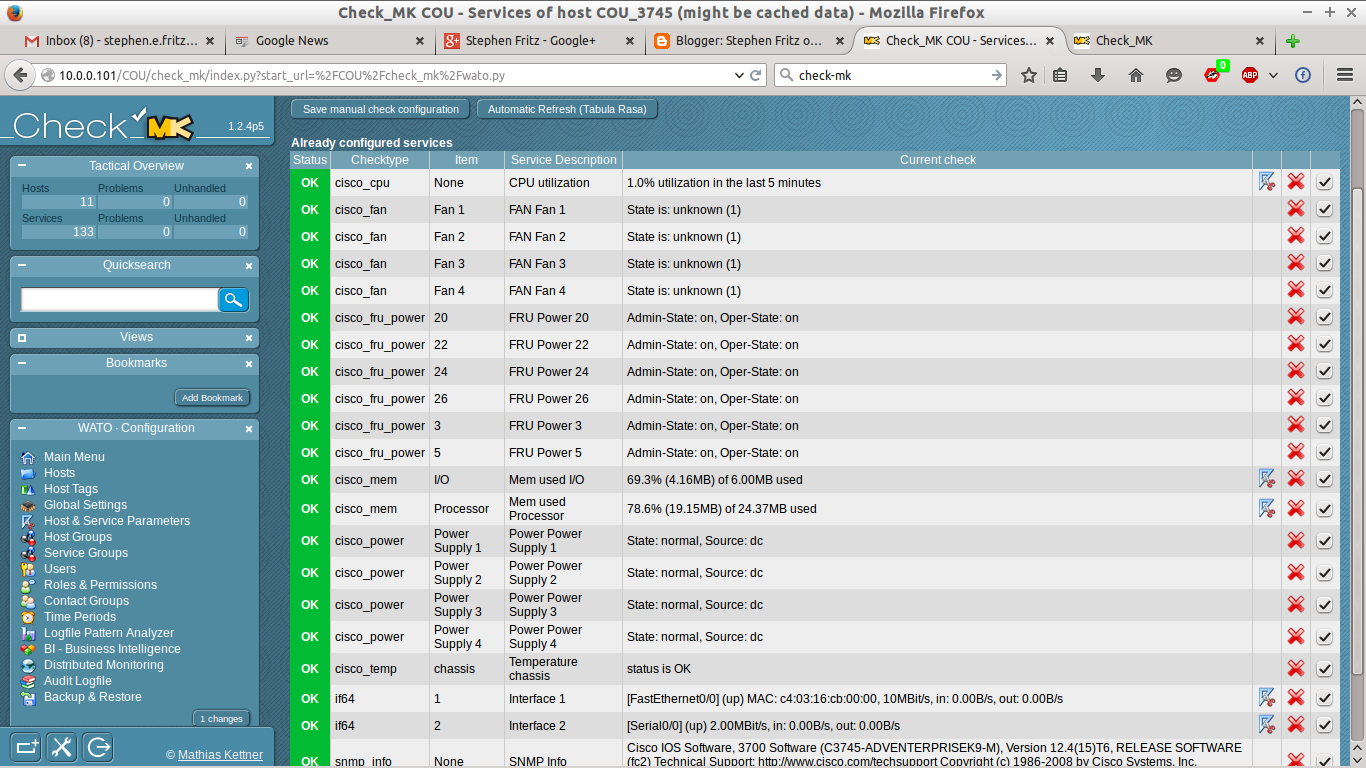
The discovery process is fairly thorough. The illustration above depicts SNMP items discovered on a Cisco 3745 Router. Discovery finds not just interfaces, but also fans, power supplies, CPU, memory and other counters. By default, the SNMP Discovery process only searches for Ethernet and Frame Relay devices on all hosts. If you have SONET or other interfaces, you must activate them from the Global Configuration screen. That process is depicted in the video at the bottom of this article.
Parent relationship definitions are included for each host. Parent relationships define topology -- as depicted above -- and also control Notifications. A more thorough treatment discussion of Nagios/Icinga Logic, Alerts and Notifications is available in another blog article. The illustration above depicts a NagVis-generated topology available from the Check-MK views.
Finally (at least as far as this article is concerned), OMD includes a preconfigured PNP4Nagios installation. As soon as a host is added the application processes service check results and begins graphing them. Although not depicted, Check-MK includes its own Perf-O-Meter views that are small and effective overviews of counters. The video below depicts OMD installation on Debian Wheezy, a rather simple process described above.
The video below depicts configuring OMD for monitoring eight Cisco routers and two Linux Layer 2 Switches using the Check-MK interface.
This article demonstrates how to configure Debian/Ubuntu VirtualBox guests to operate as Layer 2 switches with bonded NICs, aggregating several adapters into higher-speed logical interfaces.
Introduction
There have been many implementations of adapter bonding -- often vendor-specific and proprietary; these implementations are not germane to this article. Over time, published standards have replaced proprietary ones. Linux supports seven different bonding types and a Linux Bonding HOW-TO document is available at kernel.org. This article describes Mode 4, IEEE 802.3ad Dynamic link aggregation. This is a common implementation and requires switch support. It is widely supported by vendors.
Bonding Modes
Specifies one of the bonding policies. The default is
balance-rr (round robin). Possible values are:
Balance-rr or 0
Round-robin policy: Transmit packets in sequential
order from the first available slave through the
last. This mode provides load balancing and fault
tolerance.
Active-Backup or 1
Active-backup policy: Only one slave in the bond is
active. A different slave becomes active if, and only
if, the active slave fails. The bond's MAC address is
externally visible on only one port (network adapter)
to avoid confusing the switch. This mode provides fault tolerance.
Balance-XOR or 2
XOR policy: Transmit based on the selected transmit
hash policy. The default policy is a simple [(source
MAC address XOR'd with destination MAC address XOR
packet type ID) modulo slave count]. Alternate transmit
policies may be selected via the xmit_hash_policy option.
This mode provides load balancing and fault tolerance.
Broadcast or 3
Broadcast policy: transmits everything on all slave
interfaces. This mode provides fault tolerance.
802.3ad or 4
IEEE 802.3ad Dynamic link aggregation. Creates
aggregation groups that share the same speed and
duplex settings. Utilizes all slaves in the active
aggregator according to the 802.3ad specification.
Slave selection for outgoing traffic is done according
to the transmit hash policy, which may be changed from
the default simple XOR policy via the xmit_hash_policy
option.
Most switches will require some type of configuration
to enable 802.3ad mode. This mode provides load balancing and fault tolerance.
Balance-TLB or 5
Adaptive transmit load balancing: channel bonding that
does not require any special switch support.
In tlb_dynamic_lb=1 mode; the outgoing traffic is
distributed according to the current load (computed
relative to the speed) on each slave.
In tlb_dynamic_lb=0 mode; the load balancing based on
current load is disabled and the load is distributed
only using the hash distribution.
Incoming traffic is received by the current slave.
If the receiving slave fails, another slave takes over
the MAC address of the failed receiving slave.
Balance-ALB or 6
Adaptive load balancing: includes balance-tlb plus
receive load balancing (rlb) for IPV4 traffic, and
does not require any special switch support. The
receive load is distributed sequentially (round robin)
among the group of highest speed slaves in the bond.
When a link is reconnected or a new slave joins the
bond the receive traffic is redistributed among all
active slaves in the bond.
Installing ifenslave and Modifying Configuration Files
The first step is to install the ifenslave package (apt-get install ifenslave). The package includes the commands and kernel module support. Boot time kernel module loading requires adding a line -- bonding -- to /etc/modules thus:
# /etc/modules: kernel modules to load at boot time. # # This file contains the names of kernel modules that should be loaded # at boot time, one per line. Lines beginning with "#" are ignored. # Parameters can be specified after the module name.
lp rtc bonding
A new file -- etc/modprobe.d/modules.conf -- is required for additional configuration. While many configuration commands may be later added to the /etc/network/interfaces file, they may also be added to this one.
alias bond0 bonding options bonding mode=4 miimon=100 downdelay=200 updelay=200 max_bonds=2 alias bond1 bonding options bonding mode=4 miimon=100 downdelay=200 updelay=200 max_bonds=2
The illustrated options are not mandatory, but advisable. The miimon option specifies the interval (milliseconds) in which MII Link Monitoring occurs. The default value is 0 and disables MII Link Monitoring. The downdelay and updelay options specify delay times (milliseconds) between MII Link Monitoring detection of a state change and application of the change; it is a multiple of the miimon value and will be automatically rounded if otherwise defined. Another important
option is "maxbonds=#." The default for this value is 1 and it allows (but does not automatically create) a bond0 interface. If you plan to add more than
one bonded interface, you will need to specify "maxbond=#" as a larger
value. Additional configuration options are detailed in the kernel.org Linux Bonding HOW-TO document.
Configuring from the Command Line Interface
Bonded interfaces may be configured from the command line or added to the /etc/rc.local file. The following commands utilize iproute2, ifenslave and the deprecated bridge-utils packages:
ifenslave bond0 eth0 eth1 ifenslave bond1 eth2 eth3 eth4 ip link set bond0 up ip link set bond1 up ip link add dev br0 type bridge ip link set dev bond0 master br0 ip link set dev bond1 master br0 ip addr add 10.64.0.4/255.255.255.0 dev br0ip route add default via 10.64.0.1ip link set dev br0 upbrctl stp br0 on
It is not necessary to set the individual Ethernet adapters to "up" when using bonded interfaces. However, if unbonded Ethernet adapters are to be used in the bridge, they must be set to "up" thus:
ip link set dev eth5 up
Configuring /etc/network/interfaces
Alternatively, bonded Ethernet interfaces may also be configured in the /etc/network/interfaces file, providing support for the ifupdown package for high-level configuration. The following configuration creates a bridge (br0) with a static IP address, two bonds (bond0 = eth0 and eth1; bond1 = eth2, eth3 and eth4) and three Ethernet interfaces (eth5, eth6 and eth7) that are members of bridge br0.
auto lo iface lo inet loopback
auto bond0 iface bond0 inet manual pre-up ifenslave bond0 eth0 eth1 post-up ip link set dev bond0 master br0 pre-down ip link set dev bond0 nomaster post-down ifenslave -d bond0 eth0 eth1
auto bond1 iface bond1 inet manual pre-up ifenslave bond1 eth2 eth3 eth4 post-up ip link set dev bond1 master br0 pre-down ip link set dev bond1 nomaster post-down ifenslave -d bond1 eth2 eth3 eth4 iface eth5 inet manual
This command is of limited utility for bonded interfaces. Note that it lists the bond and Ethernet interfaces as up and whether they are masters (bonds) or slaves (Ethernet). It does not specify details of master-slave relationships.
This command -- part of the newer iproute2 package -- provides detailed information about interfaces states and master-slave relationships. For instance, Ethernet interfaces eth0, eth1 and eth2 enumerate bond0 as their masters and bond0 is enumerates br0 as its master.
2: eth0: <BROADCAST,MULTICAST,SLAVE,UP,LOWER_UP> mtu 1500 qdisc pfifo_fast master bond0 state UP group default qlen 1000 link/ether 08:00:27:1c:e8:ec brd ff:ff:ff:ff:ff:ff 3: eth1: <BROADCAST,MULTICAST,SLAVE,UP,LOWER_UP> mtu 1500 qdisc pfifo_fast master bond0 state UP group default qlen 1000 link/ether 08:00:27:1c:e8:ec brd ff:ff:ff:ff:ff:ff ... 9: eth7: <BROADCAST,MULTICAST> mtu 1500 qdisc noop state DOWN group default qlen 1000 link/ether 08:00:27:81:dd:5a brd ff:ff:ff:ff:ff:ff 10: bond0: <BROADCAST,MULTICAST,MASTER,UP,LOWER_UP> mtu 1500 qdisc noqueue master br0 state UP group default link/ether 08:00:27:1c:e8:ec brd ff:ff:ff:ff:ff:ff inet6 fe80::a00:27ff:fe1c:e8ec/64 scope link valid_lft forever preferred_lft forever 11: bond1: <BROADCAST,MULTICAST,MASTER,UP,LOWER_UP> mtu 1500 qdisc noqueue master br0 state UP group default link/ether 08:00:27:83:45:d7 brd ff:ff:ff:ff:ff:ff 12: br0: <BROADCAST,MULTICAST,UP,LOWER_UP> mtu 1500 qdisc noqueue state UP group default link/ether 08:00:27:1c:e8:ec brd ff:ff:ff:ff:ff:ff inet 10.64.0.4/24 brd 10.64.0.255 scope global br0 valid_lft forever preferred_lft forever inet6 fe80::a00:27ff:fe1c:e8ec/64 scope link valid_lft forever preferred_lft forever
Listing /proc/net/bonding Files
The /proc/net/bonding file contains bond-specific information, this time for a different switch using bonded Ethernet adapters eth2, eth3 and eth4. Notice that the bond Transmit Hash Policy is the default Layer 2. Also notice that the default LACP rate -- slow -- applies. LACP is the protocol that negotiates bundling between complaint switches. The default interval is slow (30 seconds) while fast (1 second) must be manually-specified.
Bonding Mode: IEEE 802.3ad Dynamic link aggregation Transmit Hash Policy: layer2 (0) MII Status: up MII Polling Interval (ms): 100 Up Delay (ms): 200 Down Delay (ms): 200
802.3ad info LACP rate: slow Min links: 0 Aggregator selection policy (ad_select): stable Active Aggregator Info: Aggregator ID: 1 Number of ports: 3 Actor Key: 17 Partner Key: 17 Partner Mac Address: 08:00:27:74:2e:0d
Slave Interface: eth2 MII Status: up Speed: 1000 Mbps Duplex: full Link Failure Count: 0 Permanent HW addr: 08:00:27:83:45:d7 Aggregator ID: 1 Slave queue ID: 0
Slave Interface: eth3 MII Status: up Speed: 1000 Mbps Duplex: full Link Failure Count: 0 Permanent HW addr: 08:00:27:1d:37:ae Aggregator ID: 1 Slave queue ID: 0
Slave Interface: eth4 MII Status: up Speed: 1000 Mbps Duplex: full Link Failure Count: 0 Permanent HW addr: 08:00:27:7e:25:d0 Aggregator ID: 1 Slave queue ID: 0
The Legacy brctl Commands
The legacy bridge-utils package provides three commands -- brctl show, brctl showmacs and brctl showstp -- that provide an overview of basic bridge configuration and operation.
brctl show <bridge_name>
brctl show br0 bridge name bridge id STP enabled interfaces br0 8000.0800271ce8ec yes bond0 bond1
brctl showmacs <bridge_name>
brctl showmacs br0 port no mac addr is local? ageing timer 1 08:00:27:1c:e8:ec yes 0.00 2 08:00:27:83:45:d7 yes 0.00 1 ca:02:10:48:00:06 no 0.00
brctl showstp <bridge_name>
brctl showstp br0 br0 bridge id 8000.0800271ce8ec designated root 8000.0800271ce8ec root port 0 path cost 0 max age 20.00 bridge max age 20.00 hello time 2.00 bridge hello time 2.00 forward delay 2.00 bridge forward delay 2.00 ageing time 300.00 hello timer 0.10 tcn timer 0.00 topology change timer 0.00 gc timer 141.52 flags
bond0 (1) port id 8001 state forwarding designated root 8000.0800271ce8ec path cost 4 designated bridge 8000.0800271ce8ec message age timer 0.00 designated port 8001 forward delay timer 0.00 designated cost 0 hold timer 0.00 flags
bond1 (2) port id 8002 state forwarding designated root 8000.0800271ce8ec path cost 100 designated bridge 8000.0800271ce8ec message age timer 0.00 designated port 8002 forward delay timer 0.00 designated cost 0 hold timer 0.00 flags
GNS3 Configuration
The GNS3 configuration depicted at the top of this article depicts three Linux switches -- PHL-Core, PHL-Servers and PHL-Storage. PHL-Core is connected to two routers over bridged Ethernet ports eth0 and eth1; it is connected to PHL-Servers over the bridged two-adapter bond0 interface (eth2 and eth3 to eth0 and eth1, respectively). PHL-Servers is connected to bridged three-adapter bond1 interface (eth2, eth3 and eth4 to eth0, eth1 and eth2, respectively). The /etc/network/interfaces files for the three configurations are below.
PHL-Core Configuration
auto lo iface lo inet loopback
auto bond0 iface bond0 inet manual pre-up ifenslave bond0 eth2 eth3 post-up ip link set dev bond0 master br0 pre-down ip link set dev bond0 nomaster post-down ifenslave -d bond0 eth2 eth3
auto bond0 iface bond0 inet manual pre-up ifenslave bond0 eth0 eth1 post-up ip link set dev bond0 master br0 pre-down ip link set dev bond0 nomaster post-down ifenslave -d bond0 eth0 eth1
auto bond1 iface bond1 inet manual pre-up ifenslave bond1 eth2 eth3 eth4 post-up ip link set dev bond1 master br0 pre-down ip link set dev bond1 nomaster post-down ifenslave -d bond1 eth2 eth3 eth4
auto bond0 iface bond0 inet manual pre-up ifenslave bond0 eth0 eth1 eth2 post-up ip link set dev bond0 master br0 pre-down ip link set dev bond0 nomaster post-down ifenslave -d bond0 eth0 eth1
Debian and Ubuntu Linux provide Layer 2 bridges with the older (and deprecated) bridge-utils package and newer iproute2 package. This article demonstrates implementing bridges using both.
Introduction
Default Debian/Ubuntu installations include the iproute2 package. The "ip" family of commands is more stable then the commands it supersedes, such as arp, ifconfig and route. The iproute2 package also supersedes two older Linux bridge packages: bridge-utils and vlan. However, the author finds configuring networking in the /etc/network/interfaces file simpler using the bridge-utils package; definitions that require scripting using iproute2 require minimal statements using bridge-utils. Thus, this article incorporates both iproute2 and bridge-utils commands to configure bridges.
Initial Configuration
The initial VirtualBox installation uses Ubuntu Server 14.04 with eight NICs, only one of which is configured. The /etc/network/interfaces file consists of:
auto lo iface lo inet loopback auto eth0 iface eth0 inet static address 10.64.0.2 netmask 255.255.255.0 gateway 10.64.0.1 dns-nameservers 192.168.1.1 8.8.8.8 4.4.4.4
This configures interface eth0 with an IP address, gateway and name servers, the first of which is the local wireless LAN router. A Cisco 7206 router has two Gigabit Ethernet interfaces, one (10.64.0.1) for the Ubuntu switch and the other (172.16.0.2) for a connection to a tun/tap device on the host laptop. The host laptop and Cisco 7206 routers use OSPF to manage routing from the virtual environment, local wireless LAN (192.168.1.0/24) and default gateway.
Configuring the Layer 2 Switch
As mentioned above, the author adds the bridge-utils package (sudo apt-get install bridge-utils). The bridge-utils package provides several statements that are used in the /etc/network/interfaces file. The iproute2 commands create the bridge and bridge-utils commands configure it at boot time. The following is an annotated /etc/network/interfaces file:
auto lo iface lo inet static auto br0 iface br0 inet static address 10.64.0.2 netmask 255.255.255.0 gateway 10.64.0.1 dns-nameservers 192.168.1.1 8.8.8.8 4.4.4.4 bridge_stp on #bridge-utils commad to enable Spanning Tree Protocol bridge_waitport 0 #bridge-utils commad to set immediate availability bridge_fd 0 #bridge-utils commad to set no forwarding delay bridge_ports eth0 eth1 eth2 eth3 eth4 eth5 eth6 eth7 #bridge-utils commad to add ports to bridge pre-up ip link add br0 type bridge && ip link set dev br0 up #iproute2 command to create and start the bridge interface iface eth0 inet manual iface eth1 inet manual iface eth2 inet manual iface eth3 inet manual iface eth4 inet manual iface eth5 inet manual iface eth6 inet manual iface eth7 inet manual
As previously noted, bridge-utils has been superseded by iproute2. However, the simple configuration used here is stable. More complex configurations may not be stable using bridge-utils commands and are likely more reliable using iproute2 scripts.
The bridge may be checked using several commands:
switch@phl-core:~$ ip addr ...
2: eth0: <BROADCAST,MULTICAST,UP,LOWER_UP> mtu 1500 qdisc pfifo_fast master br0 state UP group default qlen 1000 link/ether 08:00:27:82:81:29 brd ff:ff:ff:ff:ff:ff ... 10: br0: <BROADCAST,MULTICAST,UP,LOWER_UP> mtu 1500 qdisc noqueue state UP group default link/ether 08:00:27:1d:86:04 brd ff:ff:ff:ff:ff:ff inet 10.64.0.2/24 brd 10.64.0.255 scope global br0 valid_lft forever preferred_lft forever inet6 fe80::6854:53ff:fe4c:271/64 scope link valid_lft forever preferred_lft forever
This indicates eth0 (and the other seven NICs, omitted for brevity) are up and configured only with MAC addresses. The bridge is up and configured with both MAC and IP interfaces.
switch@phl-core:~$ ip route default via 10.64.0.1 dev br0 10.64.0.0/24 dev br0 proto kernel scope link src 10.64.0.2
This indicates all Layer 3 (IP) traffic is through the bridge interface.
These two commands -- arp and brctl showmacs -- show MAC addresses of other devices known by the switch and the entire MAC address table (local and external). In this case, the switch has entries for all of its local Ethernet devices and the Cisco 7206 router to which it is attached.
Adding Additional Switches
The original device used in this article (VirtualBox machine and Ubuntu host names "switch") is cloned to create additional switches. Once the switch is working, you may change its /etc/hosts and etc/hostname files to reflect its working name, in this case phl-core, phl-servers and phl-storage. The only change required in the /etc/network/interfaces file is the IP address of the bridge: 10.64.0.2 for phl-core, 10.64.0.4 for phl-servers and 10.64.0.5 for phl-storage. Importantly, the default gateway for all switches is 10.64.0.1 -- the Cisco 7206 router. Even though traffic from phl-servers and phl-storage must pass through phl-core, no Layer 3 processing (IP) is required because Ethernet frames are processed by phl-core using only MAC addresses at Layer 2. As a check, issue the command "traceroute 8.8.8.8." Traceroute operates at Layer 3 (IP); since phl-core operates at Laer 2, it does not appear in the trace and the first IP address hop from phl-servers and phl-storage is the Cisco 7206 router's 10.64.0.1 interface. Ubuntu switches may be added throughout the GNS3 topology, replacing the native (and functionally limited) GNS3 switches.
Spanning Tree Protocol
Spanning Tree Protocol (STP) is a method of detecting bridge loops -- Physical Layer 1 cabling connections in which multiple paths to the same MAC address exist. Bridging loop continuously forward frames and can eventually build to so much traffic the network becomes congested and unreliable. STP is a protocol that detects bridge loops and automatically disables ports to logically eliminate them.
In the above switch topology, phl-core is connected to phl-servers (eth2 - eth0) and phl-storage (eth4 - eth0) using two cables. There is no direct connection between phl-servers and phl-storage, so traffic between the two must pass through phl-core. The "brctl showstp" command on phl-core will list both eth2 and eth4 as "forwarding," that is, operational.
If we add a cable linking phl-servers to phl-storage (eth1 - eth1), there is now a bridge loop. For example, traffic from phl-core has two paths to eth0 on phl-servers: one direct (eth2 - eth0) and the other through phl-storage (eth4 - eth0) and then from phl-storage to phl-servers (eth1 - eth1). STP detects this loop and automatically shuts down a port. The "brctl showstp" command on phl-core will now list eth2 as "blocking" and eth4 as "forwarding." STP does not need to shut down any port on phl-servers and phl-storage; eth0 and eth1 on both remain in the "forwarding" state. However, all traffic from phl-servers directly to phl-core is blocked and must pass through phl-storage instead. This case illustrates how STP is an automated protocol whose decisions may result in suboptimal topologies. The goal to directly connect the servers to the storage switches was achieved, but traffic from the servers to client networks now no longer passes directly to the core, but instead indirectly through the storage switch.
The VirtualBox GUI manages up to four NICs. You may add up to eight NICs using the VBoxManage command line interface (CLI). This article demonstrates how to add and configure eight NICs for a VirtualBox/GNS3 guest.
Introduction
As illustrated above, the VirtualBox GUI only supports four NICs (Adapters 1-4) through the GUI. this is adequate for servers, but Linux also supports Layer 2 switching and Layer 3 routing; it is a viable option for networking devices in virtualized environments such as Xen and VMWare. VirtualBox is not an enterprise option, but it is a useful sandbox. However, four interfaces is not adequate for configuring bonded interfaces and larger switches.
Although the GUI only supports four interfaces, VirtualBox supports up to eight. If you open the .vbox configuration files in a VM guest's directory, there are a series of sections for Adapter Slots 0-3 beginning with:
The additional adapters are there, but disabled and not "cabled," or connected to a virtual network.
VBoxManage / GNS3 NIC Configuration
The VBoxManage CLI utility configures adapters 5-8 (in Slots 4-7) and may also be used to modify any existing NICs. This utility is invoked as the user -- NOT using sudo. Documentation of the different VirtualBox networking types is available as Chapter 6 and full documentation of the VBoxManage CLI is available as Chapter 8 in Oracle's Documentation pages. GNS3 uses the UDP Tunnel (Generic) type and will be demonstrated here for Intel Pro 1000 Desktop Adapters (Type 82545EM to VirtualBox).
where # = 1-8. You may optionally set --nicproperty# sport=##### and --nicproperty# dport=##### to manually configure each NICs source and destination UDP port numbers, however, VirtualBox will automatically assign them and it is easier (and more reliable) to allow the application to do so.
VBoxManage Script for Adding Eight NICs
As described above, configuring eight NICs from the command line requires 48 commands. This is time-consuming and error prone. The following script -- vbox_nic.sh -- may be edited by replacing the machine name Switch as required.
Once the script is run, the additional adapters will appear in the Network Section of the VirtualBox Manager GUI, but will not be available as tab under the machines settings. When booted, the adapters are available to the machine.
Describes how to configure persistent tun/tap devices and IP Masquerading on a host machine and connect to GNS3 Cloud Devices and virtual networks to the host and Internet.
9 April 2015 -- Important Update If
you install dynamips from source on Ubuntu, the executable will not
have the correct permissions for tun/tap devices. Change to the
executable's directory (/usr/local/bin) and run the following command:
Creating Persistent tun/tap Interfaces Additional software is required to create the logical interfaces for cloud devices.
sudo apt-get install uml-utilities bridge-utils
The rc.local file is executed at boot time and configures persistent tun/tap interfaces.
tunctl -t tap0 sudo ifconfig tap0 172.16.100.1 netmask 255.255.255.0 up
tunctl -t tap1 sudo ifconfig tap1 172.16.101.1 netmask 255.255.255.0 up
tunctl -t tap2 sudo ifconfig tap2 172.16.102.1 netmask 255.255.255.0 up
tunctl -t tap3 sudo ifconfig tap3 172.16.103.1 netmask 255.255.255.0 up
exit 0
Once configured and executed, ifconfig will list devices tun0, tun1, tun2 and tun3.
Configuring Network Address Translation Masquerading on the Host Machine
There are numerous articles describing Network Address Translation (NAT) masquerading available. For this example, the Webmin Firewall interface provides a graphical configuration tool to use the host wireless interface wlan0 for NAT masquerading. Under the host's Webmin interface, navigate to Networking and select Linux Firewall. In the upper left, select Network Address Translation (NAT) from the Showing IPTable pull-down menu. There will be no rules configured. NAT is a Post Routing action, so click Add Rule under the Packets After Routing (POSTROUTING) section. In the subsequent screen, select the Masquerade radio button and change the Outgoing Interface section from <ignore> to Equals and select interface wlan0 as illustrated below. Save this rule.
Make sure the Activate at Boot option is selected and click Apply Configuration.
This typically -- but not always -- applies the NAT. You may wish to reboot at this point.
The /etc/network/interfaces for the host laptop only configures a loopback device at boot time. Recall also the tun/tap devices are configured in the rc.local file. Webmin's firewall module adds a line invoking the IPTables rules under the loopback device configuration:
iface lo inet loopback post-up iptables-restore < /etc/iptables.up.rules
The files /etc/iptables.up.rules generated by webmin is:
# Generated by iptables-save v1.4.21 on Thu Jan 22 06:32:20 2015 *filter :INPUT ACCEPT [0:0] :FORWARD ACCEPT [0:0] :OUTPUT ACCEPT [0:0] COMMIT # Completed on Thu Jan 22 06:32:20 2015 # Generated by iptables-save v1.4.21 on Thu Jan 22 06:32:20 2015 *mangle :PREROUTING ACCEPT [0:0] :INPUT ACCEPT [0:0] :FORWARD ACCEPT [0:0] :OUTPUT ACCEPT [0:0] :POSTROUTING ACCEPT [0:0] COMMIT # Completed on Thu Jan 22 06:32:20 2015 # Generated by iptables-save v1.4.21 on Thu Jan 22 06:32:20 2015 *nat :PREROUTING ACCEPT [0:0] :POSTROUTING ACCEPT [0:0] :INPUT ACCEPT [0:0] :OUTPUT ACCEPT [0:0] -A POSTROUTING -o wlan0 -j MASQUERADE COMMIT # Completed on Thu Jan 22 06:32:20 2015
The most important line is:
-A POSTROUTING -o wlan0 -j MASQUERADE
Some variation of that command is required for masquerading.
Configuring OSPF Routing between the Host Machine and GNS3 Networks
Previous articles in this series have used Debian Linux VirtualBox Gateways to connect GNS3 networks to the host machine and Internet. These Gateways require 160 - 192 MB memory each and each machines eth0 interface is VirtualBox bridged to the host machines wlan0 interface. These work well, but four of them use 640 - 768 MB memory, not insignificant, when (by comparison) a Linux VirtualBox Nagios, Icinga or Zabbix server requires only 512 MB memory. Converting to host machine tun/tap devices and GNS3 clouds frees up that memory for other purposes.
Debian Linux Gateways also present additional security issues. In the illustration above, the top part depicts how the Debian Linux Gateways -- with eth0 bridged to the host's wlan0 interface -- require additional security. Each Gateway's connection runs OSPF to share routes with the host using Area 192.168.0.0 -- the wireless LAN interface -- and must be secured (this network uses the FWBuilder application to configure IPTables) because they are exposed to the wlan0 network. This may not be a issue at home, but is when connecting a laptop host to other networks. Many articles are available describing how to configure static routes for tun/tap interfaces. However, with multiple tun/tap interfaces, a routing protocol on the host machine is more flexible and reliable. For instance, multiple Cloud Device - GNS3 router instances may be created with automatic host-GNS3 and GNS3 virtual router updates. GNS3 routing topologies may be created and modified as needed and the host machine's routes to GNS3 devices will automatically update. In the illustration above, the bottom part depicts how only one interface -- the host's wlan0 -- is exposed. The cloud devices, running on tun/tap interfaces, must route through the host for Internet and wireless network access. The tun/tap device addresses and networks are merely added to the host's OSPF process. Routing from the GNS3 virtual network to the Internet is provided by the host's NAT masquerade rule. To configure routing for GNS3 Cloud devices, add the tun/tap interface networks to the OSPF configuration in the Quagga routing process. Also, the host must originate default routes for the GNS3 routers. For the four tun/tap devices already configured:
network 172.16.100.0/24 area 0.0.0.0 network 172.16.101.0/24 area 0.0.0.0 network 172.16.102.0/24 area 0.0.0.0 network 172.16.103.0/24 area 0.0.0.0
default-information originate always
Migrating from VirtualBox Debian Linux Gateways to GNS3 Cloud Devices
Migrating the network used in this series from VirtualBox Debian Linux Gateways to GNS3 Cloud devices is, at this point, rather simple:
Remove the VirtualBox Debian Linux Gateways
Add GNS3 Cloud Devices configured for host tun/tap interface
Change existing GNS3 router's IP addresses and OSPF networks
When the VirtualBox Gateways are removed there are no routes from the host to the GNS3 network. The route command on the host will only list its default gateway, wireless network and the four tun/tap interface networks. Once the first tun/tap device is connected to a cloud and the GNS3 router updated (Coudersport_Cloud in this example), the host will establish an OSPF adjacency and have routes to all GNS3 networks through interface tap0.
As each of the remaining three Cloud Devices are added, new shortest path routes appear in the host's routing table. For instance, when adding the Philadelphia_Cloud device, the route to network 10.64.0.0 255.248.0.0 changes from tap0 to tap1 (from 172.16.100.2 to 172.16.101.2). Upon completion, there will be routes from the laptop through each of the Cloud devices tap0, tap1, tap2 and tap3.